Automation Steps & Cost for Jira: documentation
See which Jira automation rules will use up your monthly steps, what the extra steps will cost, and what to change first. The app reads an export of your rules in your browser and counts their recent activity in your Jira.
Version 2.2.0 · Last updated 14 November 2026.
- Install the app
- Permissions and why the app needs them
- Set your plan and export your rules
- Read the results
- Privacy and data
- Troubleshooting
- Uninstall the app and your data
- Support
Install the app
Automation Steps & Cost is an app for Jira Cloud, for sites with Jira or Jira Service Management. It is free for every site, with no user limit.
A site admin installs it:
- On the Atlassian Marketplace, find Automation Steps & Cost for Jira by Clearlane.
- Select Get it now, then choose the Jira site to install it on.
- Review the permissions the app asks for (listed below), then confirm.
Once it is installed, the app is in Jira settings › Apps, under the name Automation Steps & Cost. Only Jira administrators can open it and use it.
The first time you open it, Jira may ask you to allow the app to access Jira for you. Choose to allow it: the app makes its Jira searches as you, with your permissions.
Permissions and why the app needs them
| Permission | What the app does with it |
|---|---|
Read Jira work (read:jira-work) | Checks that you are a Jira administrator, finds which projects you can browse, and counts the work items that match the searches built from your rules. Only numbers and project ids are used: no work item is listed or read. Every call is read-only and made as the person using the app, so Jira applies that person’s permissions. |
App storage (storage:app) | Keeps your plan and the totals of your last 12 analyses, in Atlassian’s storage for your site (see Privacy and data). |
The app makes no call outside Atlassian, and it never changes Jira: no rule, project or work item is created, edited or deleted.
Set your plan and export your rules
1. Your plan
Add each product with its plan and its number of licensed users: Jira, Jira Service Management, Jira Product Discovery, Confluence or Teamwork Collection. Their allowances are added up into your organization’s pooled monthly allowance, shown under the products. The plan is saved for your site, and the app shows Saved.
If automation in Confluence or on other sites uses the same allowance, type the steps it uses a month in Steps a month used outside this file. Atlassian Administration › Usage › Meters › Automation steps shows them by app.
2. Your rules
The app works from the JSON export of your automation rules. Exporting them needs Jira administrator rights.
- In Jira, open Settings › System › Automation (Global automation).
- Choose ••• › Export flows (or Export rules) and save the JSON file.
- In the app, select Choose the export file, or drop the file on the page. You can also paste the file’s content and select Read.
Export all rules from Global automation: the file then holds this site’s Jira, Jira Service Management and Jira Product Discovery rules. A file of up to 25 MB is read, with up to 3,000 rules.
The app then counts your site’s activity in Jira and shows its progress. On a large site this takes a few minutes. To stop, select Stop and read another file.
To see the app before using your own rules, select See an example with sample rules. The results then use made-up numbers and are marked Sample data.
Read the results
The results estimate the next 30 days from the last 30 days of activity in Jira. Only enabled rules are counted: a turned-off rule uses no step.
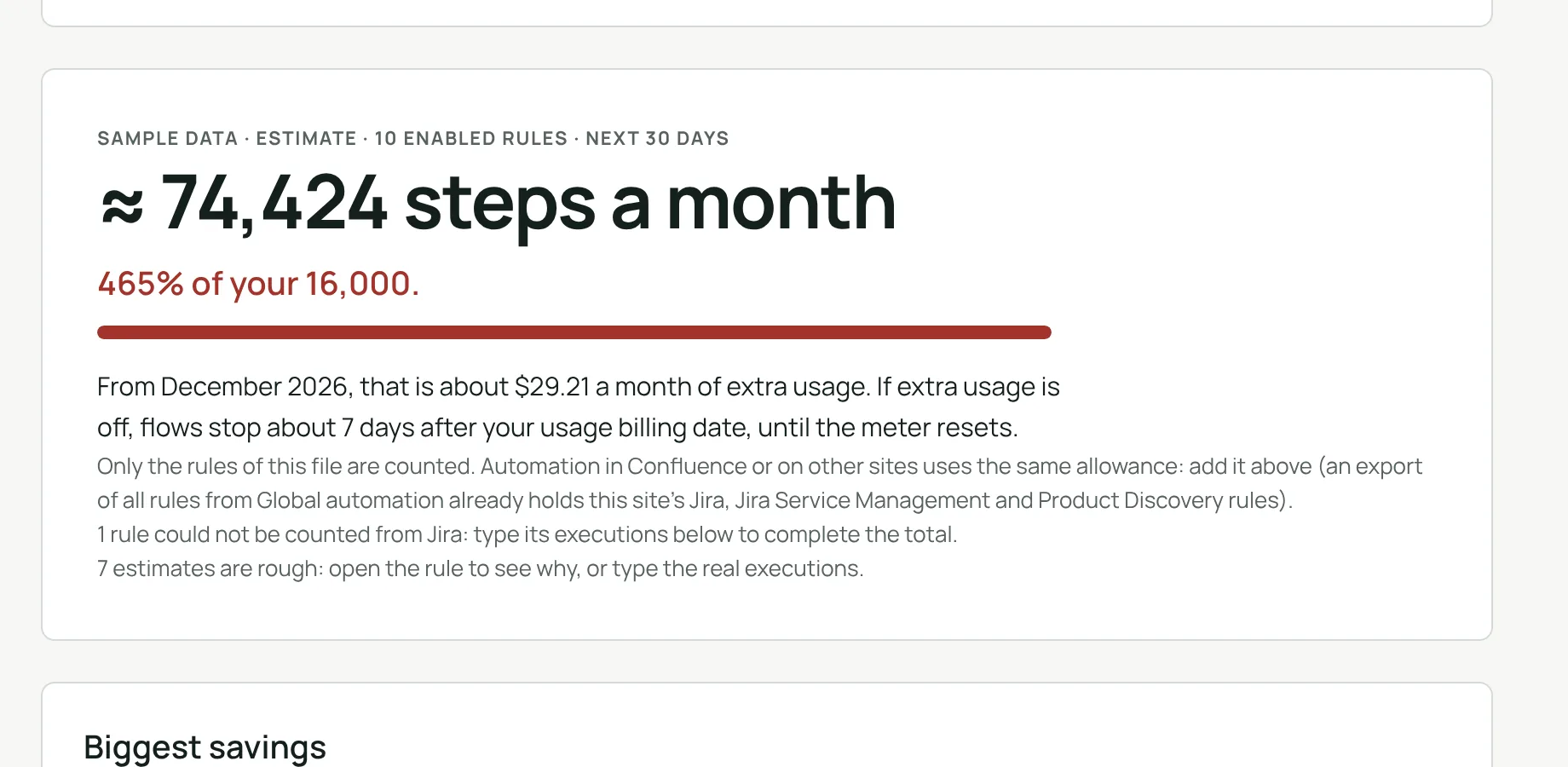
- Steps a month. About how many steps your rules will use a month, and their share of your allowance.
- Extra cost. Above the allowance, the extra usage a month, at Atlassian’s price of $0.50 per 1,000 extra steps.
- Stop day. If extra usage is off, about how many days after your usage billing date your rules would stop, until the meter resets.
- Biggest savings. The changes that would save the most steps, first, each with the steps it can save a month.
- Rules by steps a month. Each rule with its runs over 30 days, its steps per run, its steps a month and its share of the total. Open a rule to see how it was counted and what to change.
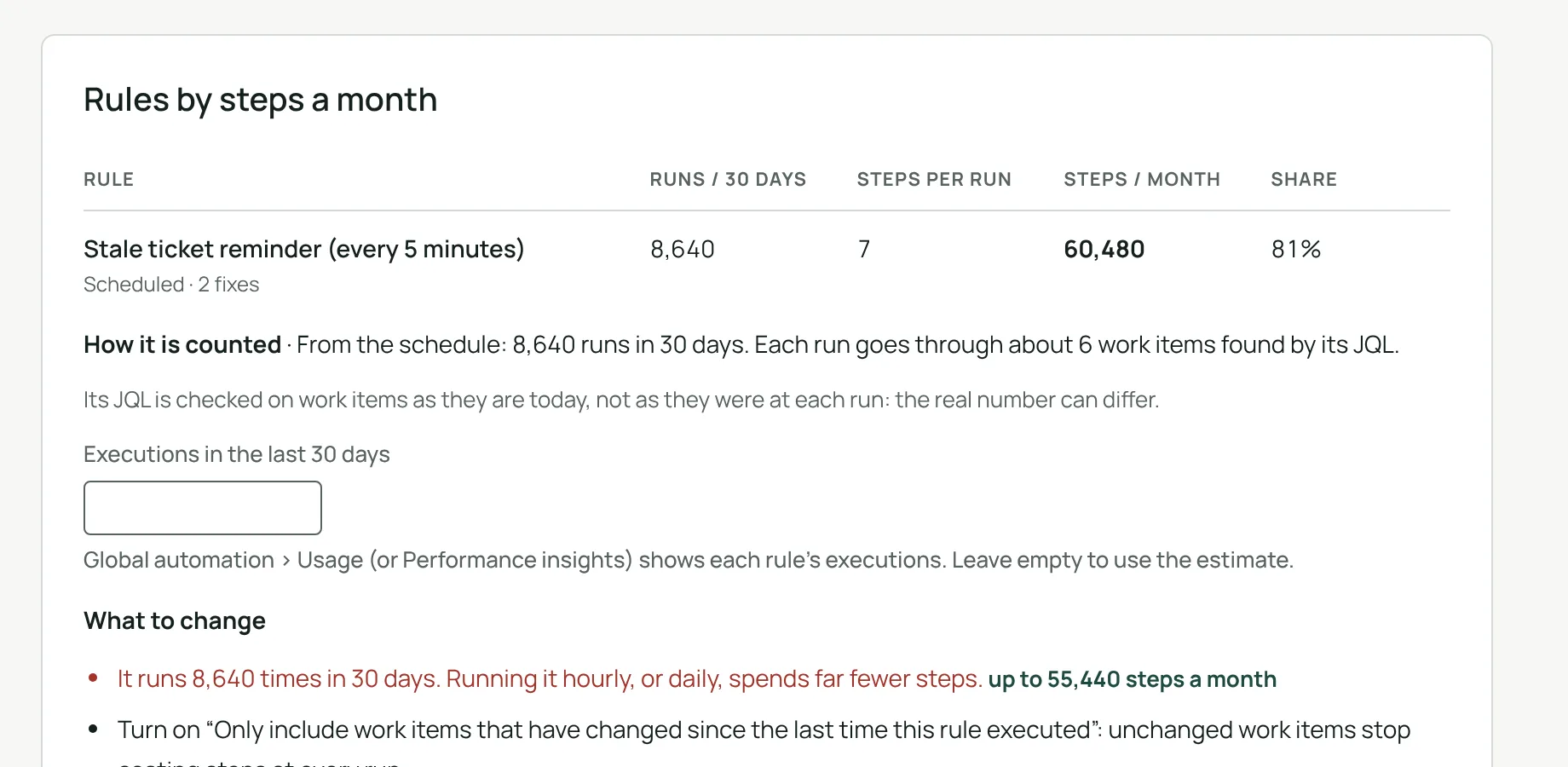
- What to change. The fixes found for the rule, for example: move a condition into the trigger, run a scheduled rule less often, process only work items changed since the last run, use Field value changed instead of any update, narrow a branch’s JQL, or merge rules with the same trigger and scope. A key or password typed in plain text in a rule is flagged too.
- Rough estimates. Estimates that can be off are marked, with the reason. Some triggers cannot be counted from Jira (manual, incoming webhook…): type the rule’s executions from Global automation › Usage, and the total includes them. You can also type the number of work items a branch goes through.
- Compared with last time. Each analysis is saved as a total, and the next one shows the change since the last saved analysis.
This is an estimate, not your bill. Atlassian’s meter, in Atlassian Administration › Usage › Meters › Automation steps, is the reference. How Atlassian counts steps: How is my automation usage calculated.
Privacy and data
Runs on Atlassian Your data stays in your Atlassian site.
- The app runs on Atlassian Forge and makes no call outside Atlassian.
- Your export file is read in your browser only: your rules, URLs and keys are never sent or kept.
- The searches built from your rules run in your Jira, as you, and only numbers come back.
- The app keeps only your plan (products, plans, users and steps used outside the file) and the totals of your last 12 analyses (date, number of steps, number of rules and number of rules that could not be counted), in Atlassian’s storage for your site. Only Jira administrators can read or change them.
- Its error logs hold no rule, no rule name and no search.
More in our privacy policy and our trust center.
Troubleshooting
“Only Jira administrators can use this page.”
The app is for Jira administrators. Ask a Jira administrator to open it, or to give you the Administer Jira global permission.
“This is not a JSON file” or “No automation rule was found in this file.”
The file is not an automation export, or it was changed. Export the rules again from Global automation, then drop the JSON file as it was downloaded.
“Jira is very busy right now”, or rules marked Not counted
Jira limited the searches for a moment. Wait a minute, then read the file again: the numbers already counted are kept. You can also type a rule’s executions from Global automation › Usage.
Projects hidden from you, or “Jira refused the searches”
Runs are counted with your permissions, so only the projects you can browse are counted, and the app says how many are hidden from you. Give yourself Browse projects in those projects and read the file again, or type the rules’ executions.
The total differs from Atlassian’s meter
The app estimates from the last 30 days, and marks the rough estimates. Type the real executions of the rules marked approximate, and add the steps used outside this file (Confluence, other sites). Atlassian’s meter is the reference for your bill.
Uninstall the app and your data
A site admin can uninstall the app at any time, from the apps your site has installed (Jira settings › Apps › Manage apps). Uninstalling changes nothing in Jira: your rules, projects and work items stay as they are.
Atlassian then soft-deletes the app’s stored data (your plan and saved totals). If you reinstall the app and ask Atlassian support within 21 days of uninstalling, the new installation can be relinked to that data. Otherwise, it is deleted under Atlassian’s data retention policy (Atlassian documentation).
Support
We read every message and reply within two business days, in English, French or German.
You can also write to [email protected]. Include the app name, what you expected and what you saw. Never send your export file, passwords or API tokens. In the app, Contact Clearlane support opens the same help center.
See also the Automation Steps & Cost page, the known issues and the app status.